
How to run an inventory count
Count your store's stock against expected levels, record what you find, and finalize the count so WashWerk reconciles on-hand quantities and flags discrepancies. This guide is for store managers, shift leads, maintenance techs, and owners, on web or mobile.
Before you start
- Where: Store-level — Inventory count screen
- Permission: Manage Inventory
- Available by default to: Owners and Store Managers. (On custom roles, this needs the permission named above.)
- You must have: Active inventory items at your store. To scan during a count, you also need QR labels printed and the WashWerk mobile app (scanning is mobile-only).
Set up a recurring count schedule
Configure a schedule so WashWerk generates a pending count automatically at a regular interval.
- Open Inventory in the sidebar, go to the Items view, then the Schedule tab.
- Choose a Frequency (Daily, Weekly, or Monthly), set the Time, and pick the Day of Week or Day of Month when prompted.
- Optional: Set an Assigned Role so only that role is prompted to run it; leave it blank for any role.
- Make sure Schedule Active is on, then select Save Schedule.
Start a count
You can start a count two ways. Use whichever fits the moment.
Start an ad-hoc count
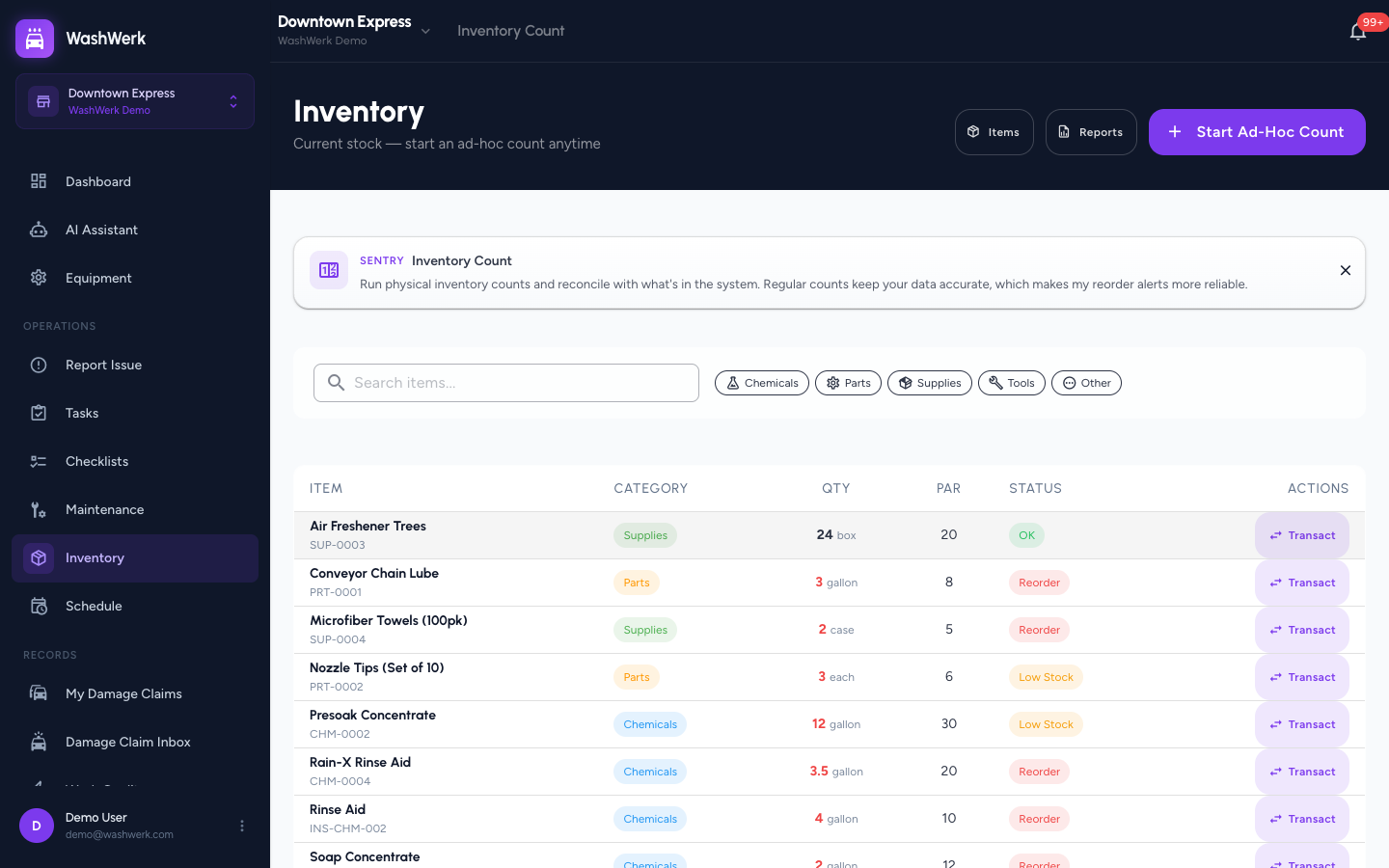
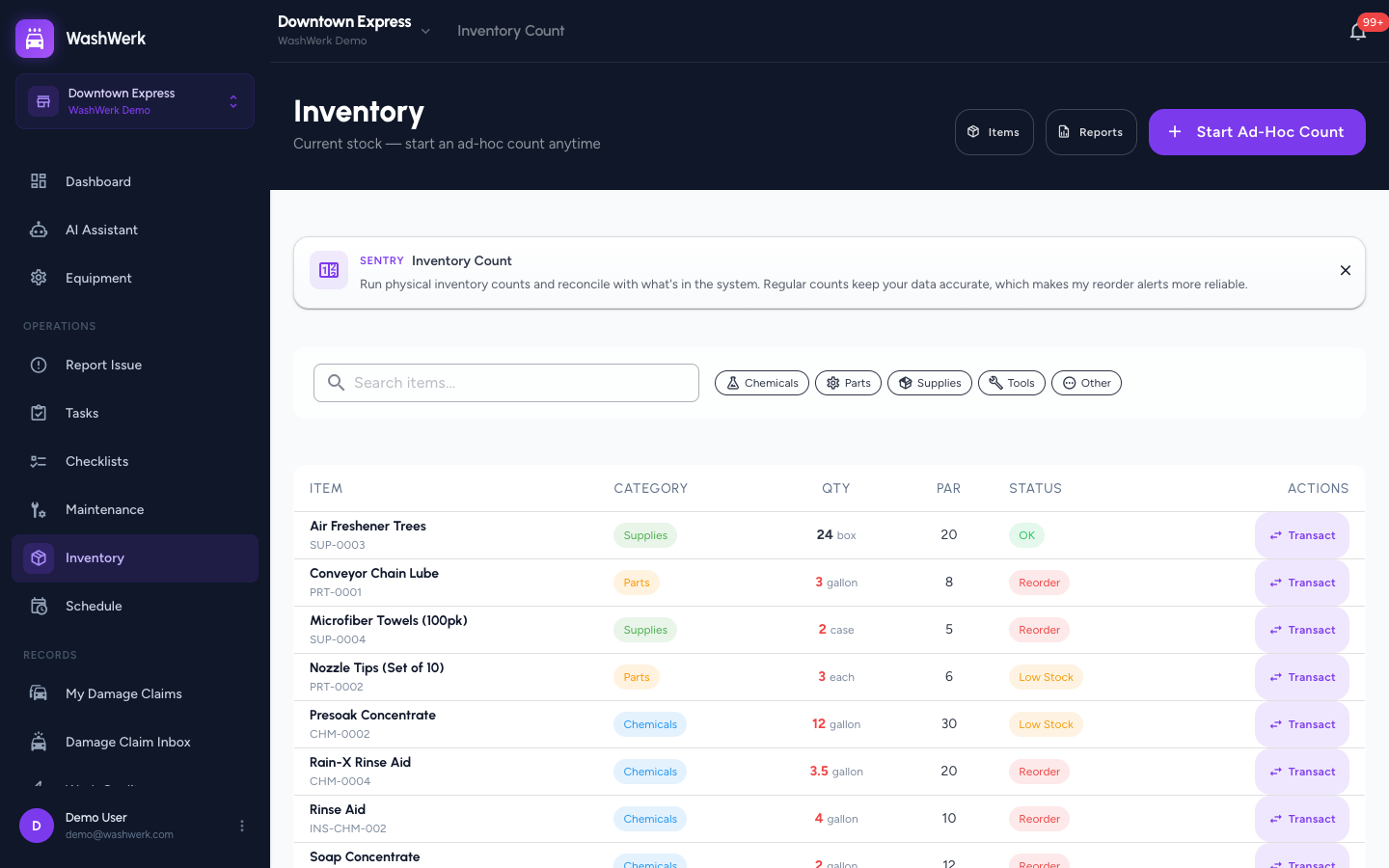
- Open Inventory in the sidebar. The current-stock view opens.
- Select Start Ad-Hoc Count (top right). WashWerk creates a count line for every active item and opens the active-count screen.
Start a pending scheduled count
- On the Inventory screen, find the count under Scheduled Counts.
- Select Start Count on that card. The active-count screen opens.
Record quantities
- In the active count, select an item line. The count entry dialog opens showing the expected quantity.
- Enter the Counted Quantity, then select Save & Next to record it and jump to the next uncounted line. The line shows a green chip with the count and any discrepancy.
- To pass on an item without recording it, select Skip. The dialog advances to the next uncounted line.
- On mobile, to jump straight to a specific item, select the scan (QR) button and scan the item's QR label. Its count entry opens directly.
Filter the count lines
- Use the Search items box to find a line by name.
- Select a category chip (Chemicals, Parts, Supplies, Tools, Other) to show only that category.
- Select Uncounted Only to hide lines you've already counted.
Complete the count
- Select Complete in the top bar. The completion dialog summarizes counted, skipped, and discrepancy totals.
- Review the Discrepancies Found list (expected vs. actual for each item).
- Optional: Add Notes about the count.
- Select Submit Count. WashWerk marks uncounted lines as skipped, writes an adjustment for each discrepancy, and finalizes the count. You land on the Items list pre-filtered to low stock so you can reorder.
Print QR labels for items
- On the Items tab of the Items & Vendors page, select Print QR Labels.
- On the labels screen, select Print to print the label sheet. Only items that have a QR code appear.
Expected result
The count moves to Completed in your count history, on-hand quantities update to match the counted figures, and any item that dropped to or below its par level shows a Low Stock or Reorder status.
Troubleshooting
- If you can't start or open a count: Your role doesn't include the Manage Inventory permission — ask an owner or manager to grant it.
- If "Scanned item is not part of this count" appears: The item isn't in this count (it may be inactive or not carried at this store). Record it from its line in the list instead.
- If QR scanning does nothing: Scanning works only in the WashWerk mobile app. On web, find the item line manually.
- If the labels screen is empty: None of your items have QR codes yet. Items get a QR code when created; recreate or re-save the item if its label is missing.