
How to find your way around the store dashboard
Get oriented on the store dashboard: read the greeting, clear your personal Action Queue, and launch common tasks from Quick Actions. This is the home screen every store user lands on.
Before you start
- Where: Store-level — this is the store's home screen on web and mobile.
- Permission: The Action Queue and Quick Actions are available to every store user, no special permission needed. The store health score, its component breakdown, the KPI alert chips, and the recent-activity feed require the Overview Dashboard permission (a manager-level permission). Without it you get a slimmer operator dashboard: greeting, Action Queue, and Quick Actions only.
- You must have: An active store selected. Switch stores from the app bar if you're in the wrong one.
Read the greeting and health
- The dashboard greets you by name with today's date at the top.
- If you have overview access, the health score ring sits below the greeting. Hover (or tap) it for the Health Breakdown by module — Tasks, Checklists, Equipment, Maintenance, Inventory, Wash Quality, and Damage Claims.
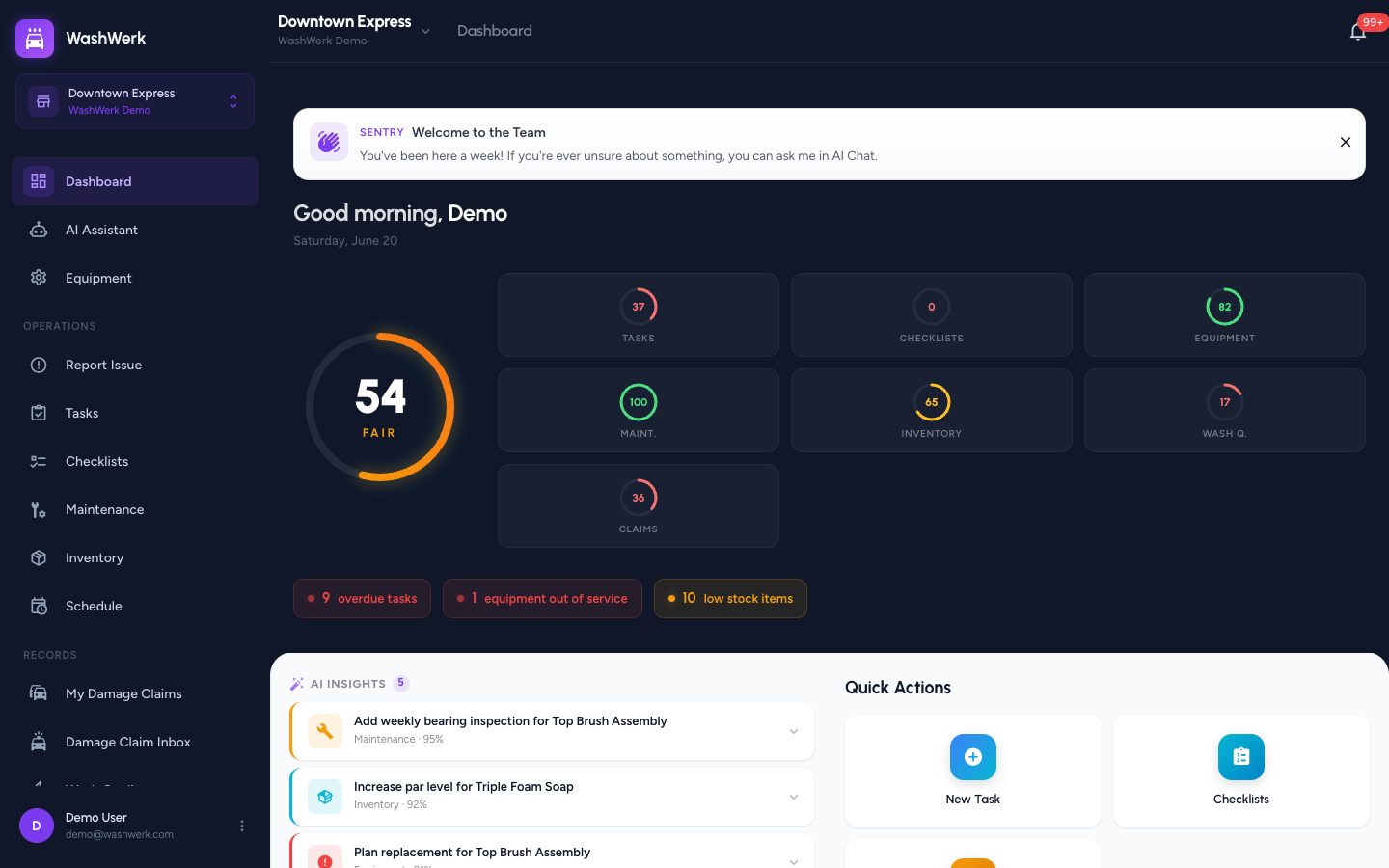
- Hover any module gauge for its specific issues, such as overdue tasks or low-stock items.
Check the KPI alert chips
- With overview access, alert chips appear under the health section for anything needing attention — overdue tasks, equipment out of service, open work orders, and low-stock items. Each chip shows a count and label. No chips means nothing is flagged.
Work your personal Action Queue
- Find the Action Queue in the dashboard body — it lists what needs your attention, such as due checklists, assigned tasks, and maintenance sessions.
- Select an item to jump straight to it (the task, checklist, maintenance session, or inventory count).
- On mobile, pull down on the queue to refresh it. When it's empty, you'll see "All clear! No tasks or checklists due right now."
Use Quick Actions
- On desktop, the Quick Actions tiles (New Task, Checklists, Inventory) start common work in one selection.
- On mobile, select the floating + button to open the speed dial and choose an action such as New Task.
Expected result
You can read your store's health at a glance, see exactly what needs doing in the Action Queue, and start a task or checklist in one step from Quick Actions.
Troubleshooting
- If you see "Unable to load dashboard": The data didn't load. Select Retry to fetch it again.
- If the health score, alert chips, and activity feed are missing: Your role doesn't include the Overview Dashboard permission. This is expected for operator roles — ask a company admin if you need the manager overview.
- If the Action Queue looks stale on mobile: Pull down on the list to refresh, or revisit the dashboard tab to reload it.