
How to set up customer wash feedback (QR codes and alerts)
Set up the tools a store uses to collect wash feedback — the public QR form, low-rating alerts, an SLA, wash package labels, and signage — so customers can flag problems and managers hear about bad washes fast enough to fix them. For owners and company admins standing up a store's feedback program.
Before you start
- Where: Store view — Wash Quality Settings.
- Permission: Configure Wash Quality.
- Available by default to: Owners and Company Admins. (On custom roles, this needs the permission named above.)
- You must have: A store selected. Open the page from Wash Quality → Settings, or directly at Settings → Wash Quality.
Enable public QR feedback
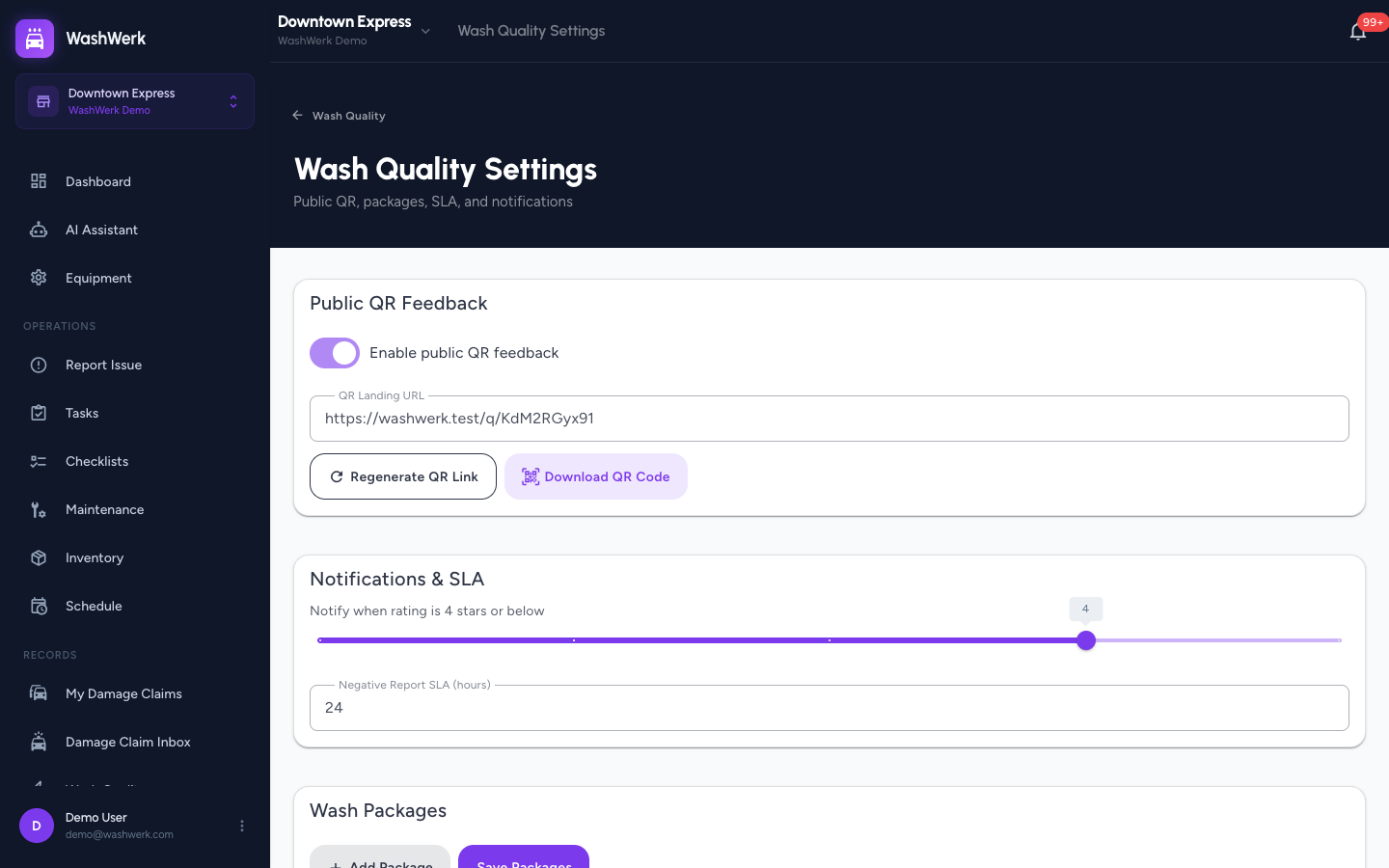
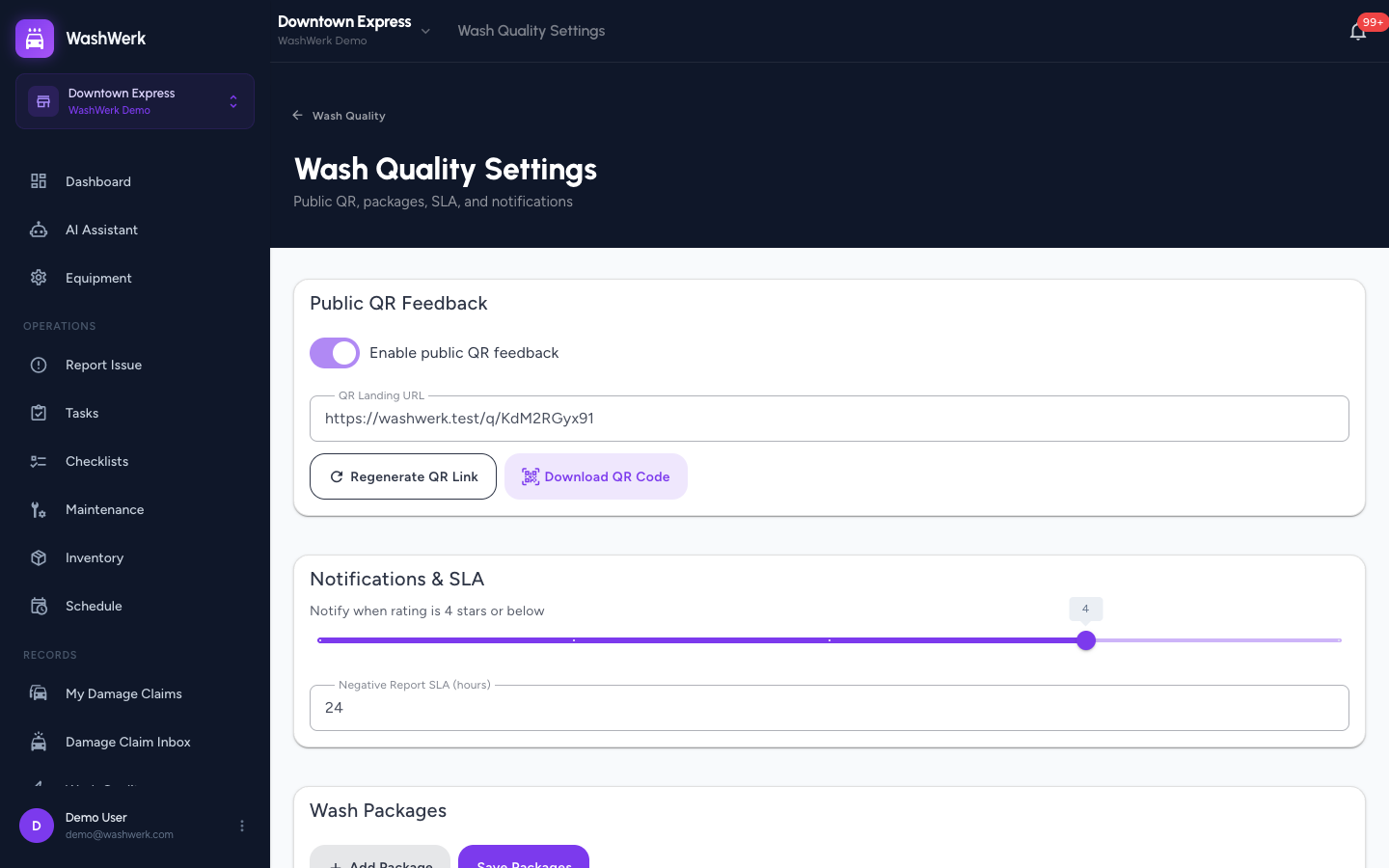
- On the Wash Quality Settings page, find the Public QR Feedback card.
- Turn on Enable public QR feedback. The QR Landing URL field shows the public link customers reach.
Download the QR code for signage
- In the Public QR Feedback card, select Download QR Code. The QR code image opens so you can save and print it for counter or bay signage.
You can also download the QR code from the QR button in the Wash Quality inbox header.
Regenerate the QR link
Regenerate when a printed code is compromised or you want a fresh link.
- In the Public QR Feedback card, select Regenerate QR Link.
- In the confirmation dialog, select Regenerate.
WARNING
Regenerating invalidates every printed QR code for this store. Reprint and replace your signage afterward.
Set negative-rating alerts and SLA
- Find the Notifications & SLA card.
- Drag the Notify when rating is … stars or below slider to the threshold at which managers are alerted (1–5).
- In Negative Report SLA (hours), enter how long the team has to act on a negative report (1–168). The value saves when you leave the field.
Managers receive the alert only if their role includes the Receive notifications Wash Quality permission for the store.
Manage wash package labels
- Find the Wash Packages card.
- Select Add Package to add a row, type the label in each Package field, and use the trash icon to remove a row.
- Select Save Packages. A confirmation appears.
Edit the QR form intro and Google review URL
- Find the Marketing & Branding card.
- In QR Form Intro Copy, type the greeting shown at the top of the public form; a live preview appears below it.
- In Google Review URL, paste the store's Google review link. Customers who leave a 4–5 star rating are offered this link on the thank-you page.
- Both fields save when you leave them.
Copy settings to other stores
This card appears only for companies with more than one store.
- Find the Copy Settings to Other Stores card.
- In Select stores to copy to, choose one or more destination stores.
- Select Copy Settings. A confirmation shows how many stores received the settings.
Expected result
Public QR feedback is enabled, you have a printable QR code, low-rating alerts and the SLA are set, and your wash package labels, intro copy, and Google review link are saved.
Troubleshooting
- If Download QR Code is disabled: the store has no feedback link yet. Enable public QR feedback or use Regenerate QR Link to create one.
- If the SLA field shows an error: enter a whole number between 1 and 168 hours.
- If you can't open the settings page or changes return a permission error: you need the Configure Wash Quality permission. Ask a company admin to grant it.
- If managers aren't getting low-rating alerts: confirm the star threshold is set high enough and that each recipient's role includes the Receive notifications Wash Quality permission for the store.