
How to accept and ship a transfer order from the warehouse
Work through the orders your stores have placed against the warehouse — accept them, pick them, and mark them shipped so the stock leaves the warehouse's on-hand count and the store knows it's coming. This guide is for warehouse operators and owners working from a warehouse location.
Before you start
- Where: Warehouse-level — Fulfillment in the sidebar. Switch to the warehouse from the location switcher: warehouses are listed under their own Warehouses heading, below your stores.
- Permission: Fulfill Inventory Transfers
- Available by default to: Owners and Warehouse Operators. You must also be assigned to the warehouse the order was placed against — fulfilling from a different location is not possible. (On custom roles, this needs the permission named above.)
- You must have: Stock on hand at the warehouse for the items you're shipping.
Read the board
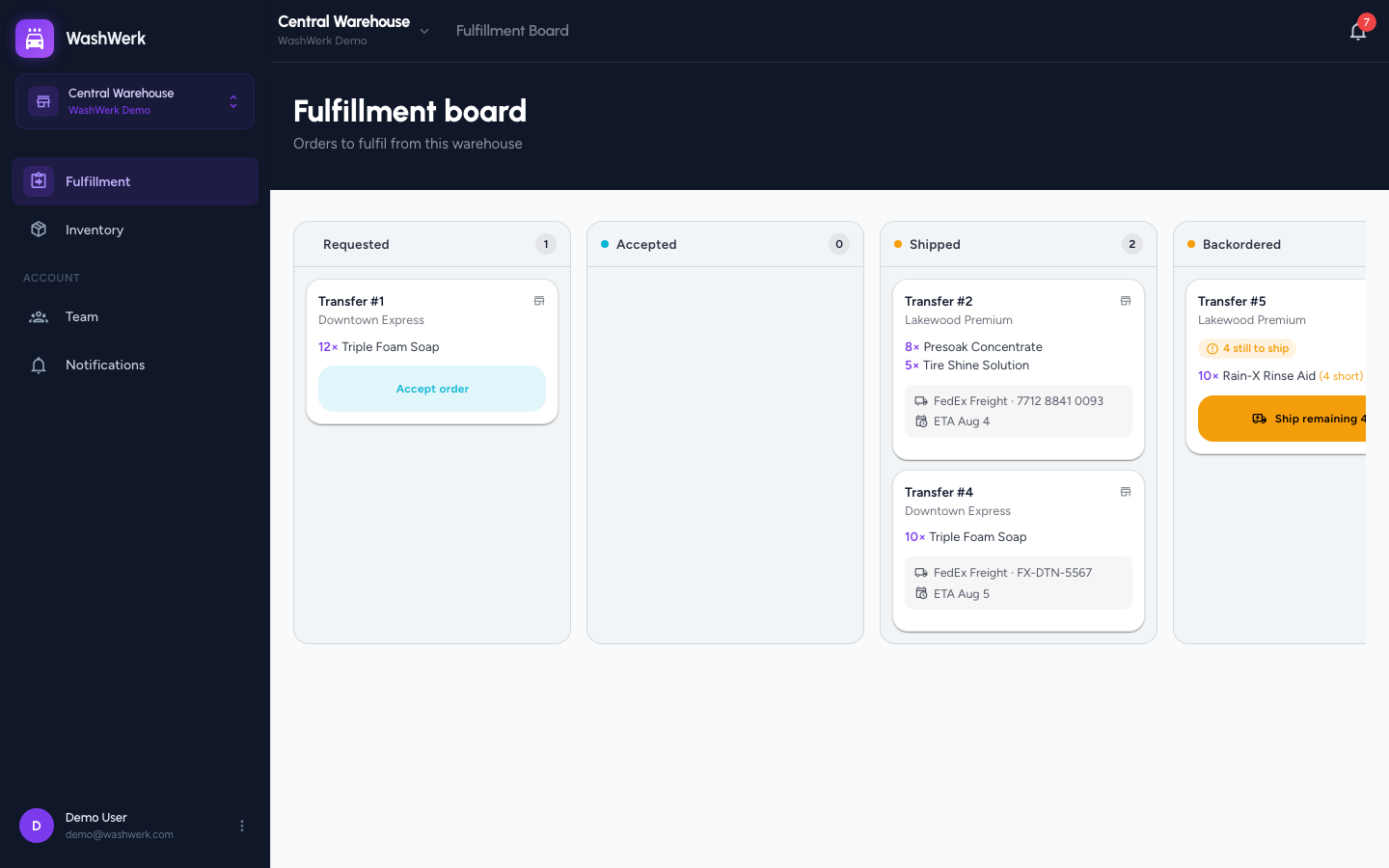
The Fulfillment board is a column per order status, with a card per order. Each card names the order number, the destination store, and every line with the quantity requested. Once an order has been through a shipping round, the card also shows how many units are still to ship, and each short line is marked.
Accept an order
- On a card in the requested column, select Accept order. It moves to the accepted column and the store is notified.
An order must be accepted before it can be shipped. If your company has approval turned off, orders arrive already accepted and you can skip straight to shipping — see How to configure transfer rules and statuses.
Ship a complete order
- On an accepted card, select Mark shipped. A dialog opens with a row per line, each pre-filled with everything still owed.
- Optional: Enter the Carrier, Tracking number, and ETA so the store can follow the delivery. WashWerk doesn't fetch these from a courier — whatever you type is what the store sees.
- Select Mark shipped.
The shipped units come off the warehouse's on-hand stock immediately. They don't land in the store's stock until someone there confirms the delivery.
Ship part of an order
Ship what you actually have rather than holding the whole order back. The rest stays on the order as a backorder you can work off later.
- On the card, select Mark shipped (or Ship remaining N on an order you've already part-shipped).
- Lower the Shipping figure on each line to the number of units going out on this truck. Leave lines you're sending in full alone.
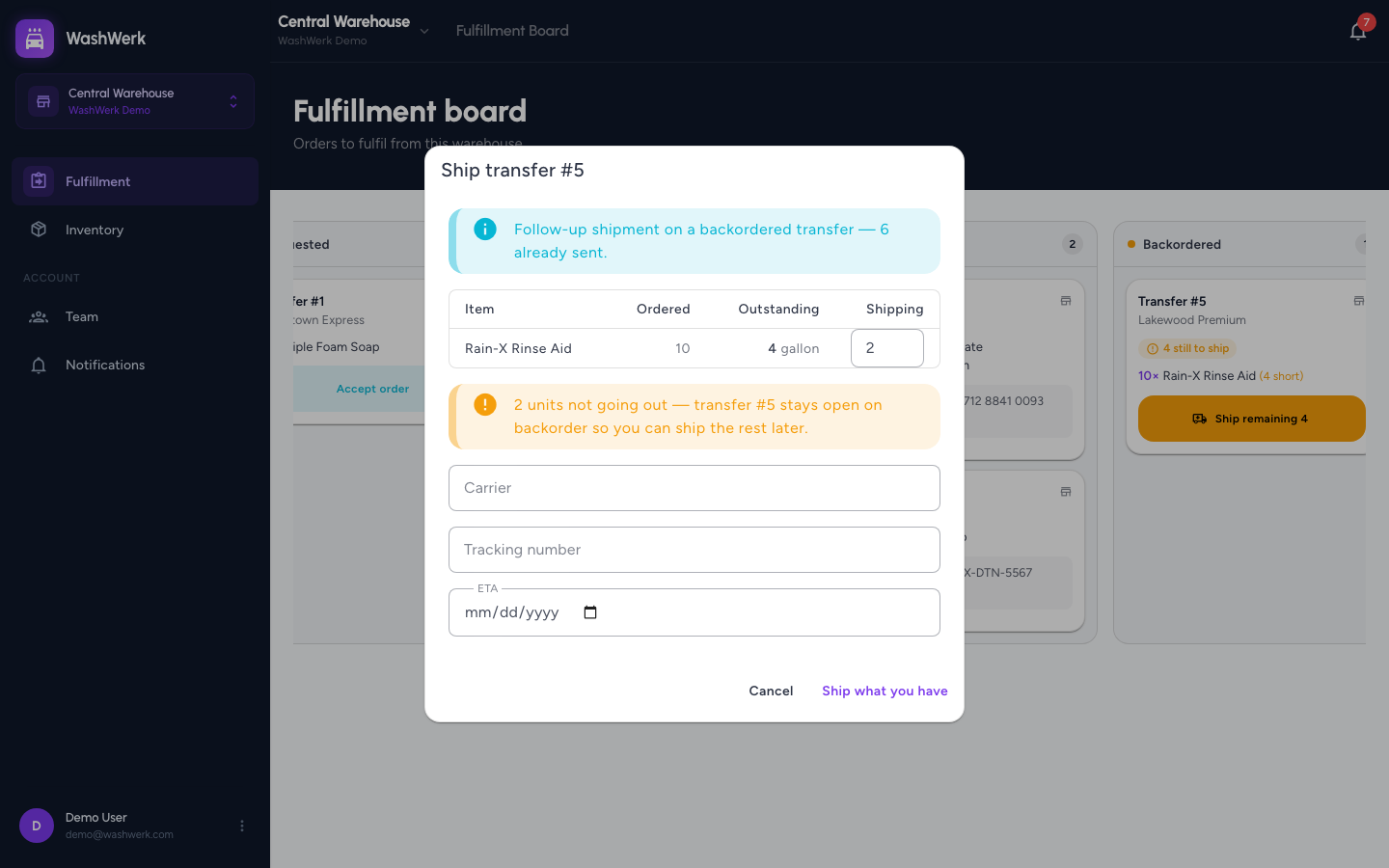
- Read the warning that appears — it names how many units aren't going out and confirms the order stays open.
- Optional: Enter the Carrier, Tracking number, and ETA for this shipment. Each round carries its own details.
- Select Ship what you have.
Work off a backorder
- An order you've part-shipped keeps a Ship remaining N button on its card. Select it whenever stock comes in and repeat the shipping step until nothing is outstanding.
If the rest is never coming, either side can stop the order: you can close it short from the warehouse, or the destination store can — see How to resolve a backordered transfer.
Expected result
A fully shipped order confirms Transfer #N shipped and moves to the shipped column. A partial shipment confirms Transfer #N partially shipped — N still to send, keeps the order on the board, and shows the store how many units it's still owed.
Troubleshooting
- If a card has no action button: The order is already complete, cancelled, or closed short — nothing is left to do on it.
- If shipping is refused because the order must be accepted first: Select Accept order on the card, then ship it.
- If you're told you can't ship more than on hand: The warehouse's own stock is lower than the figure you entered. Ship what you have and leave the rest on backorder, or record the stock you received at the warehouse first.
- If you're told you can't ship more than the outstanding quantity: A line is asking for more than the store is still owed. Lower it to the Outstanding figure shown in the same row.
- If the sidebar only shows Fulfillment and Inventory: That's expected. A warehouse is a fulfillment location, so it doesn't get the wash-store surfaces.
- If the board says "Nothing to fulfil": No store has ordered from this warehouse yet.