
How to complete your opening and daily checklists
Work through a checklist that's due today, record a response for every item, and sign off so your shift's routine is logged. This is for anyone assigned a daily routine — shift leads, attendants, maintenance techs, and managers.
Before you start
- Where: Store-level (works on web and the mobile app)
- Permission: Complete Checklists
- Available by default to: Owners, Store Managers, Shift Leads, and Wash Attendants. (On custom roles, this needs the permission named above.)
- You must have: At least one checklist scheduled and assigned to your role or position so it shows up in today's list.
Open today's checklist
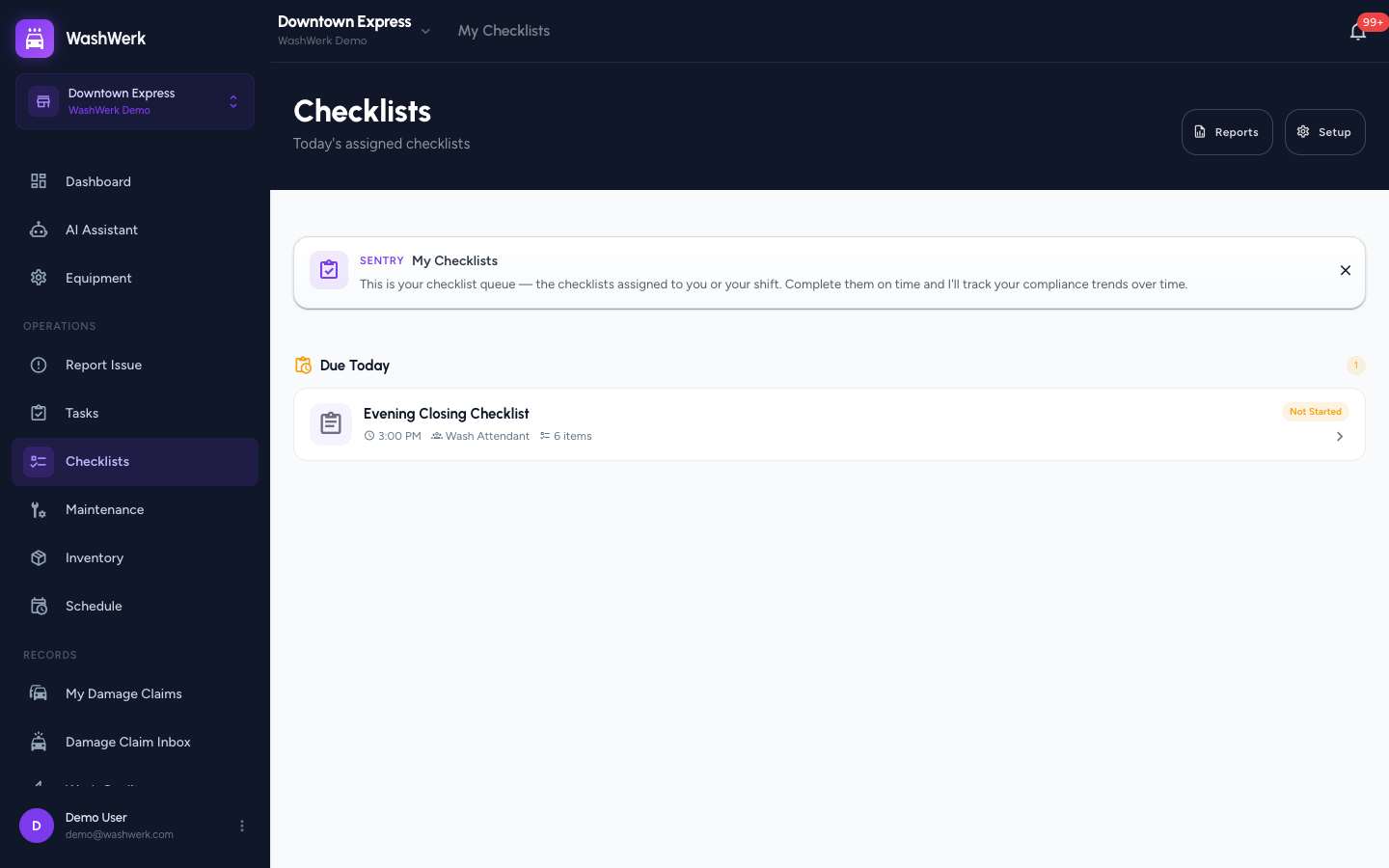
- In the store app, open Checklists from the navigation. The list shows today's checklists under Due Today and Completed.
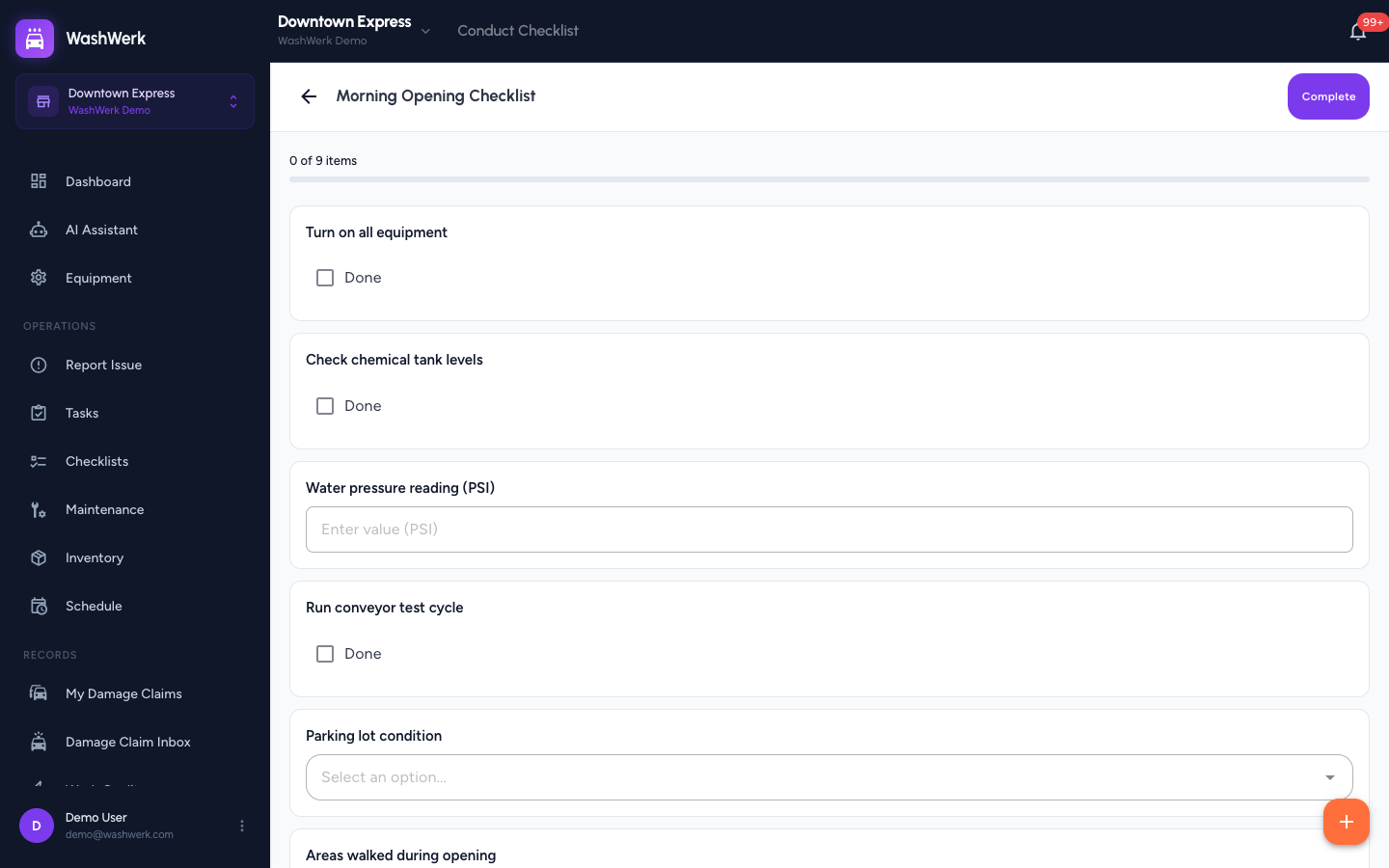
- Under Due Today, select the checklist you need to run. The checklist opens with a progress bar showing
0 of N items.
Respond to each item
Each item commits its response as you go — there's no separate save per item. The progress bar and a green check mark confirm a saved answer.
- For a checkbox item, select Done to mark it complete.
- For a number item, type the reading, then press Enter or select the save icon (or move to the next field) to commit it.
- For a text item, type your note, then press Enter or select the save icon to commit it.
- For a dropdown item, select an option from the list.
- For a multi-checkbox item, select every option that applies.
Capture a photo
- For a photo item, select Take photo to open the camera, then capture the shot. A preview appears, and you can select Retake photo to replace it.
Handle an irregular reading
When a reading falls outside its acceptable range, matches a flagged option, or contains a flagged keyword, the item turns amber with a warning icon.
- Review the amber-highlighted item to confirm the reading.
- In the Add a note about this reading field that appears under the item, type a short explanation. The note saves when you move off the field.
- Optional: To assign follow-up work, select the + button, fill in the task, and save it. The task stays attached to this checklist and shows later under Tasks Found During Checklist in the completed record.
Sign off and complete
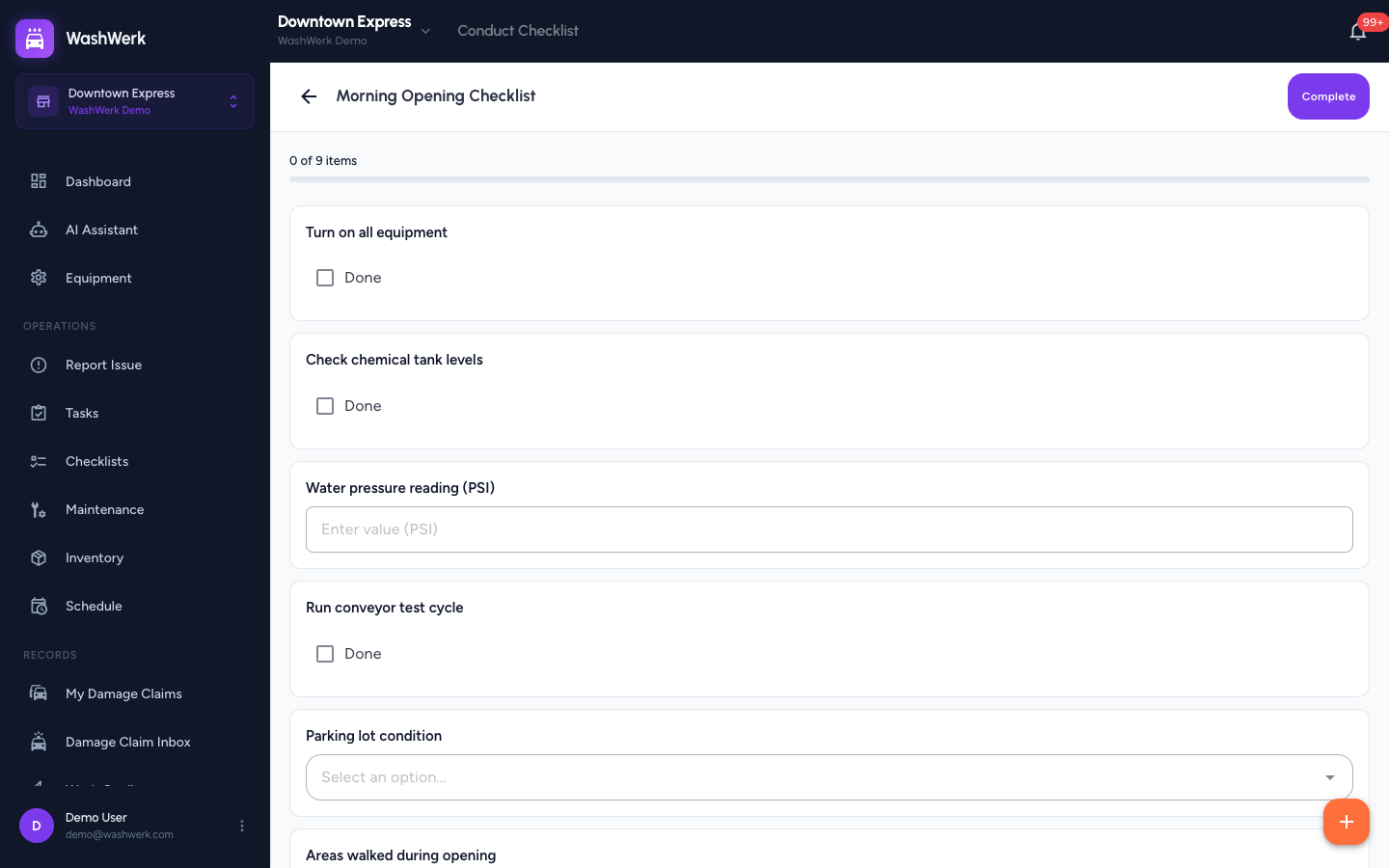
- Select Complete in the top bar. A sign-off dialog opens.
- If any required item is unanswered, the dialog lists those items — close it, answer them, then select Complete again.
- Draw your signature in the signature box. Select Clear to redraw if needed.
- Select Complete to finish. The checklist moves to Completed in the list.
Expected result
The checklist now appears under Completed in today's list, stamped with your name, the completion time, and your signature. Managers can open it from Reports to review your responses and any flags.
Troubleshooting
- If the Complete button lists unanswered items: Those items are marked required. Close the dialog, answer each listed item, then select Complete again.
- If you see "Couldn't save that response": The answer didn't save. Check your connection and tap the item again to resend it.
- If no checklists show under Due Today: Nothing is scheduled for your role today, or it isn't due yet. Confirm the checklist is assigned to your role or position.