
How to add inventory items
Add a new item to your store's inventory so you can track its stock, and edit either the per-store stock settings or the company-wide shared fields once it exists. This guide is for store managers, owners, and maintenance managers.
When to use this
Create a new item only when no other store in your company already carries it — if one does, adopt it from the company catalog instead so locations stay standardized.
If the item is already carried by another store in your company, adopt it from the company catalog instead of recreating it — see How to adopt items from the company catalog.
Before you start
- Where: Store-level — Inventory module
- Permission: Manage Inventory to add and edit per-store stock. Editing the shared, company-wide fields (name, SKU, category, unit, default cost, default vendor, and whether the item is partially consumable) also requires permission to edit shared company-catalog item details.
- Available by default to: Owners and Store Managers. (On custom roles, this needs the permission named above.)
- You must have: A store selected. To assign a vendor, add it first — see How to manage vendors.
Add an inventory item
- In the store sidebar, open Inventory, then select the Items view. The Items & Vendors page opens on the Items tab.
- Select Add Item (top right). The Add Inventory Item dialog opens.
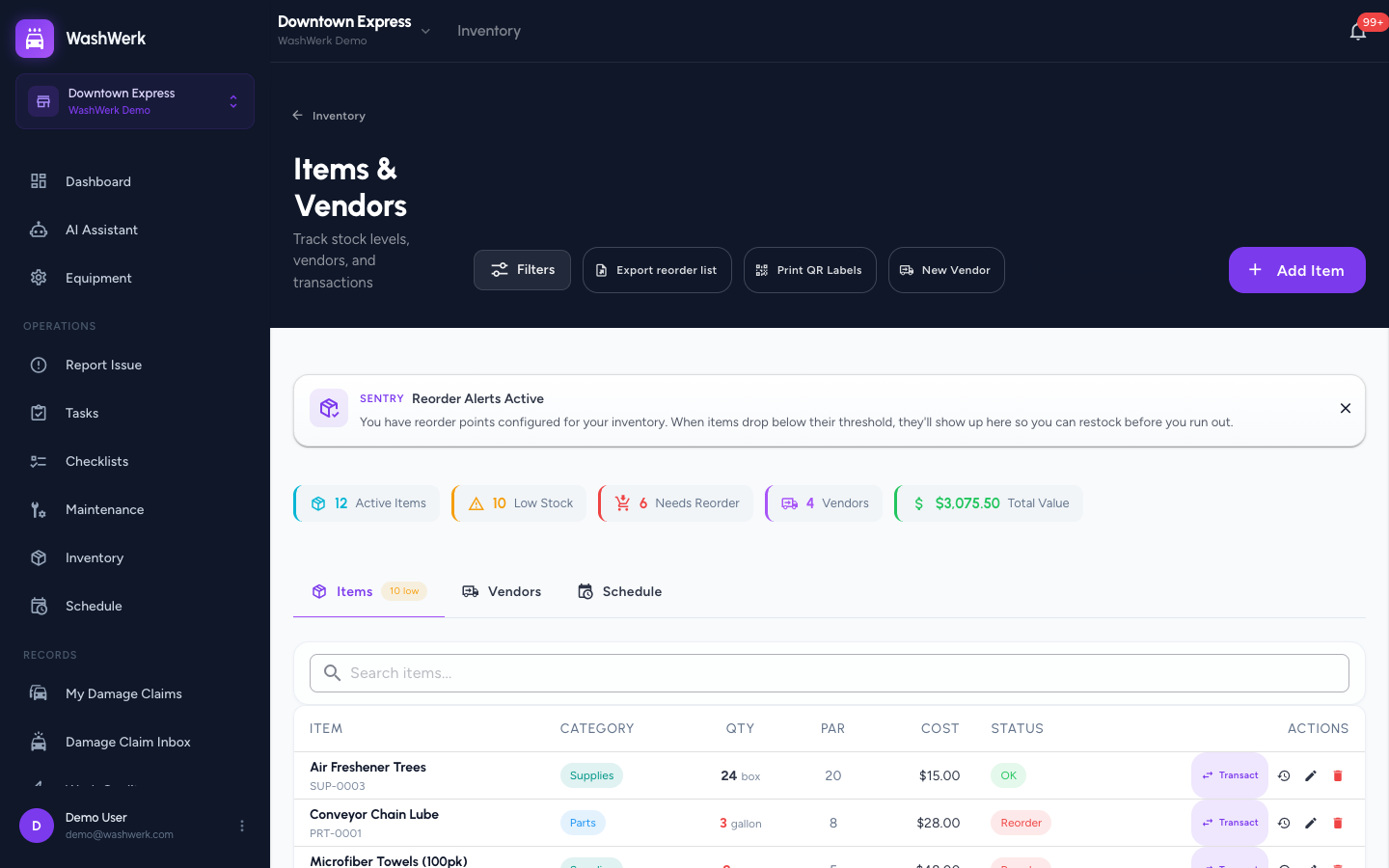
- Enter the Name and select a Category (Chemicals, Parts, Supplies, Tools, or Other) and a Unit (Each, Gallon, Liter, Box, Case, Pound, or Roll). These three fields are required.
- Optional: Fill in SKU, Vendor, Quantity on Hand, Cost per Unit, Par Level, Reorder Point, and Location. Par Level sets the minimum stock before a low-stock alert; Reorder Point triggers a reorder.
- Optional: Select Partially consumable if the item lasts across multiple uses (for example, grease tubes or chemical jugs).
- Select Add Item. The item is created and appears in the Items list.
Resolve a duplicate-item warning
When you add an item whose name or SKU resembles one already stocked at another store in your company, WashWerk shows the We found similar items dialog so you don't create a duplicate of an item your company already tracks.
- Review the suggested items and the stores that already carry each one.
- If a suggestion is the same item, select Carry this beside it. Your store starts carrying that existing item — no duplicate is created. (This option is unavailable for items your store already carries.)
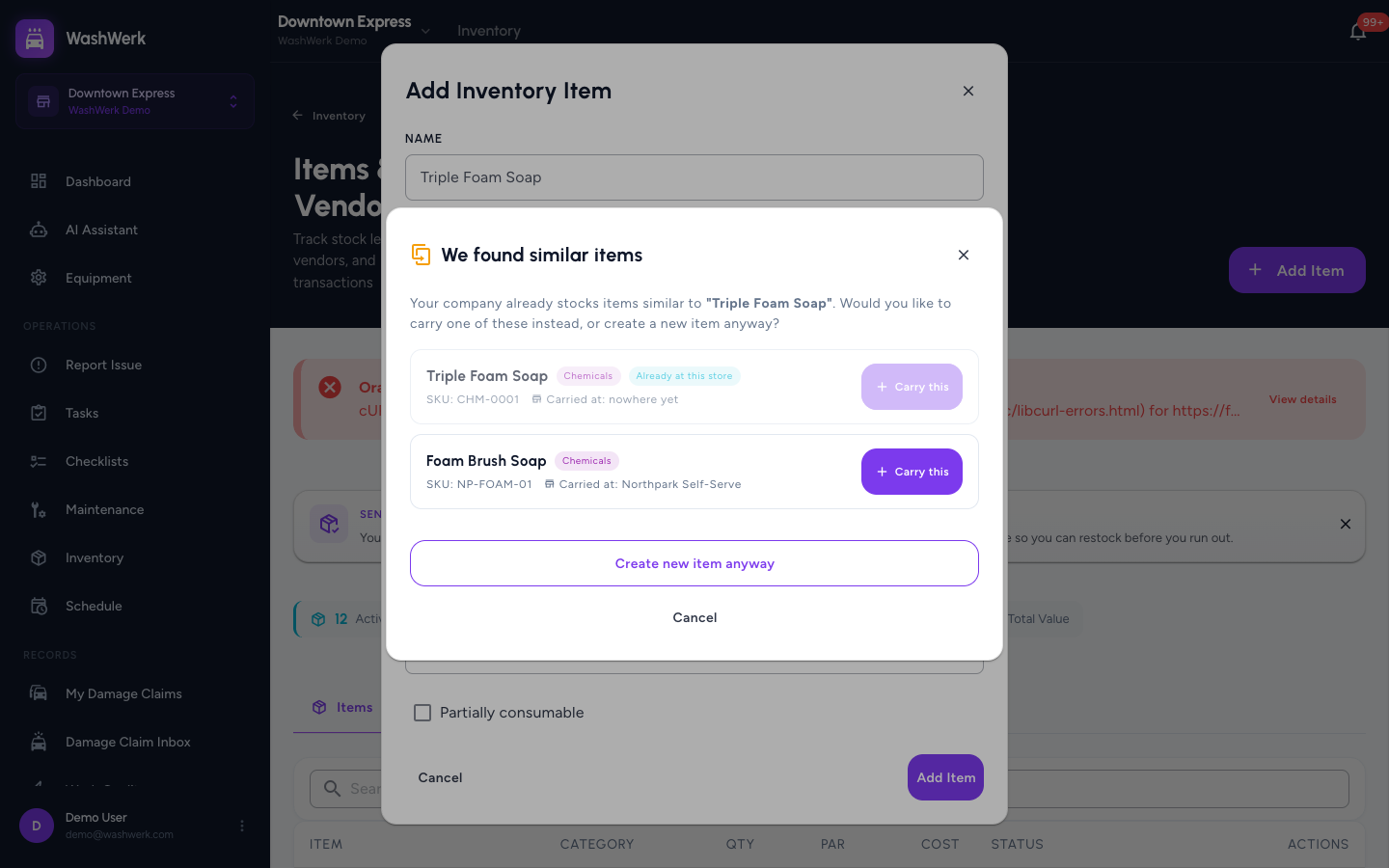
- If none match and you genuinely need a separate item, select Create new item anyway. WashWerk creates the new item despite the similarity.
- To rename or change the SKU first, select Cancel. The form stays open with your entries so you can adjust and resubmit.
Edit an item's per-store stock settings
- On the Items tab, find the item and select the pencil (Edit) icon in its row (or, on mobile, the three-dot menu then Edit).
- Change any per-store field — Vendor, Cost per Unit, Par Level, Reorder Point, or Location.
- Select Save Changes. The row updates with the new settings.
Edit an item's shared (company-wide) fields
These fields are shared by every store that carries the item, so changing them needs permission to edit shared company-catalog item details.
- Open the item's edit dialog as above.
- Change a shared field — Name, SKU, Category, Unit, default cost, default vendor, or Partially consumable.
- Select Save Changes. The change applies to the item across all stores that carry it.
Stop carrying an item at your store
- On the Items tab, select the delete (trash) icon in the item's row.
- In the confirmation dialog, select Delete. Your store stops carrying the item; other stores keep it, and the item's transaction history is preserved.
Expected result
The item appears in the Items list with its category, quantity, par level, and an OK / Low Stock / Reorder status chip. Edits are reflected immediately in the row.
Troubleshooting
- If you don't see the Add Item button: Your role doesn't include the Manage Inventory permission — ask an owner or manager to grant it.
- If saving a shared field shows a permission message: Editing the company-wide fields needs permission to edit shared company-catalog item details. Change only the per-store fields, or ask an owner to update the shared details.
- If you see a message that adding items is turned off: Your company keeps its inventory in a connected outside system. Add or edit the item in that system instead, and the change will appear here.